
Scan-to-order to kitchen meal prep: front- and back-of-house coordination.
Link Tables, Menus, Specifications, Add-ons, Kitchen Tasks, and Call Numbers to Transmit Customer Requests to the Kitchen via Orders.
Understand system functionality through a single transaction.
Observe Real Tasks in Stores, Then Evaluate How Customers, Staff, and Managers Hand Off Responsibilities
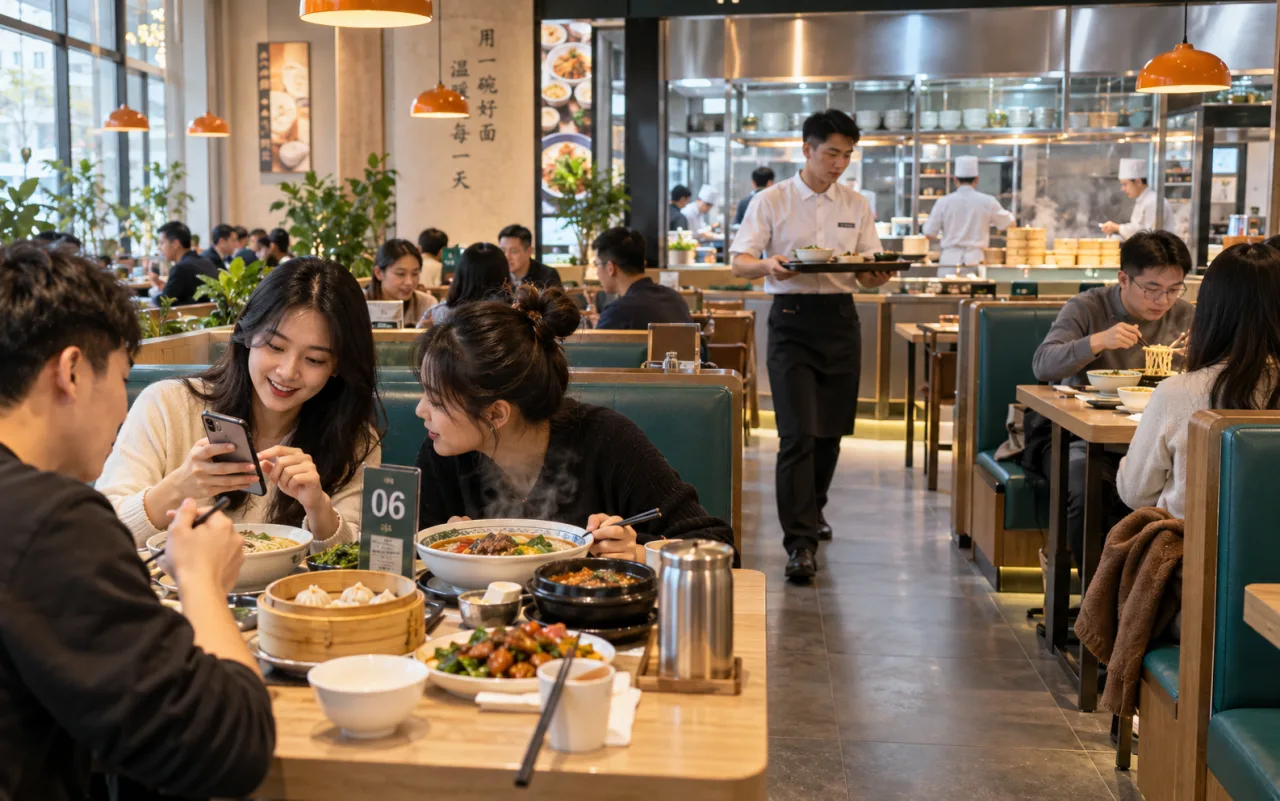
After tableside ordering, how to ensure dishes reach the correct table?
Verify dishes, specifications, notes, and table assignments together to ensure customer orders flow seamlessly to kitchen and service staff.
Information follows the order—from mobile selection to tableside dishes.
- Customer
Tableside menu selection
View menus via table QR code; select dishes, specifications, and quantities.
- Front Desk
Verify orders
Verify table number, products, and notes; relay production requirements.
- Kitchen
Schedule Meal Preparation
Prepare meals per kitchen tasks and role assignments; track production progress.
- Service personnel
Deliver to Table
Cross-Check Orders and Table Service to Confirm Delivered Meals.
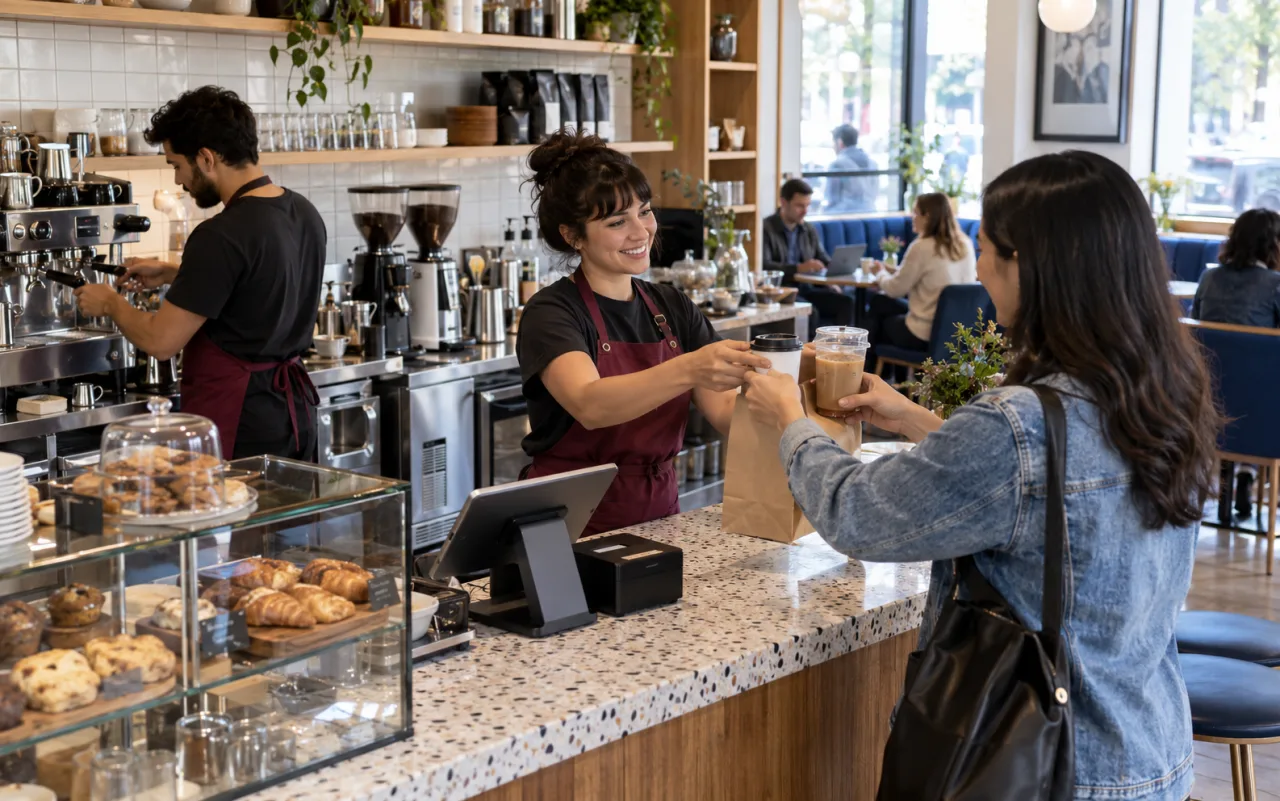
How to connect ordering, preparation, and pickup into one seamless flow?
Confirm cup size and notes at counter; production staff prepare drinks per order; verify items against customer needs at pickup.
Each role must see the next step; link ordering and pickup workflows.
- Customer & Staff
Confirm order placement
Select Beverage, Cup Size, Temperature, and Add-ons; Verify Preparation Notes.
- Staff
Handover Orders
Confirm product, quantity, and pickup information; hand to production staff.
- Barista
Prepare Beverages
Prepare items per order; verify specifications and special requests.
- Staff
Verify pickup
Confirm Items Against Pickup Information, Complete Packaging and Delivery.
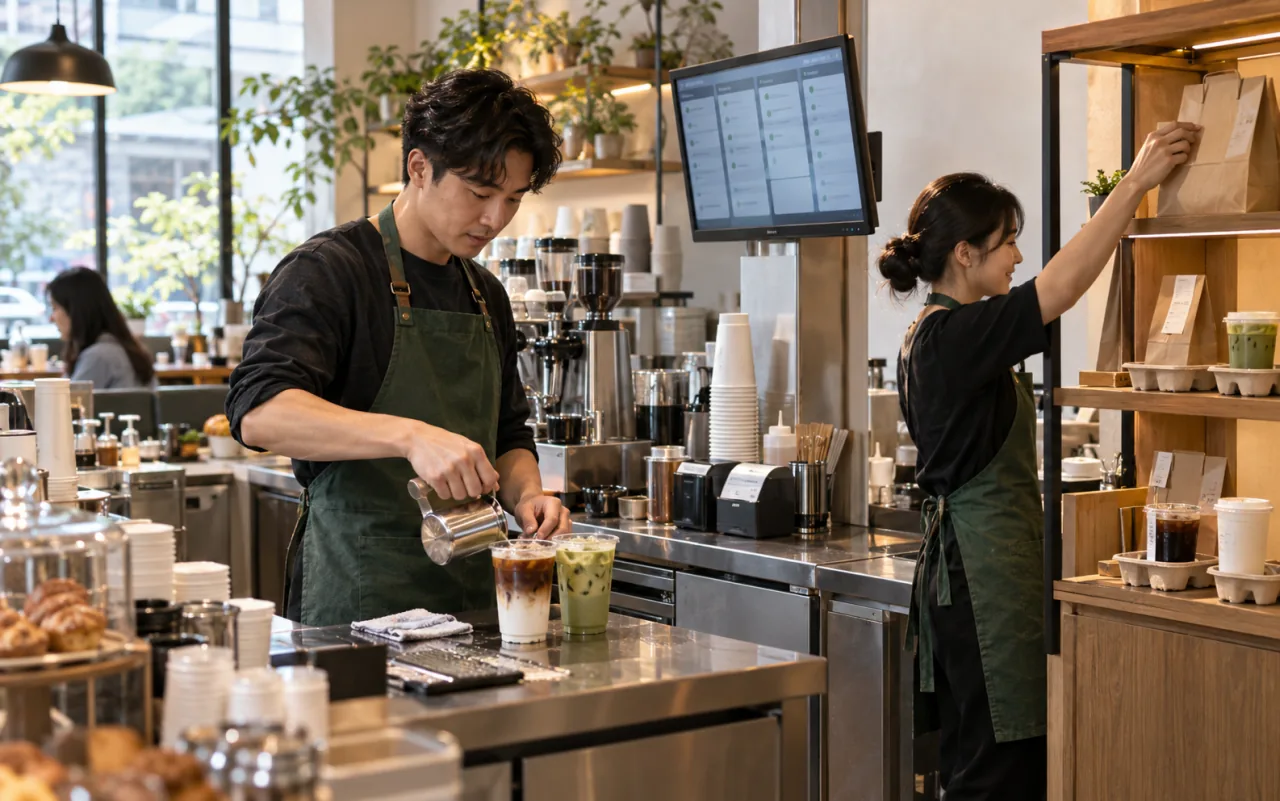
Once an order reaches the kitchen, who does what next?
Link pending, in-progress, and completed tasks; ensure specifications and notes travel with orders.
Front desk, kitchen, and service staff collaborate around the same order to complete handoffs.
- Back Kitchen
Receive Orders
View products, preparation notes, and table/pickup details.
- Back Kitchen
Schedule Production
Schedule production using kitchen tasks, tickets, and role assignments.
- Back Kitchen
Update progress
Track preparation status for front/back-of-house order progress verification.
- Staff
Meal Preparation Completed
Assign service per table or takeout number; verify delivered items to customers.

How do staff handle self-service orders placed by customers?
Ensure cup sizes, add-ons, and table assignments are clearly communicated from tableside menus to order handovers for seamless front- and back-of-house collaboration.
Customer selections populate the order; staff deliver services based on the same unified information.
- Customer
Scan to view menu
Enter H5 menu via store or table QR code; view products.
- Customer
Select Specifications
Select Cup Size, Temperature, and Add-ons; Enter Required Preparation Notes.
- Customer
Confirm order
Verify products, quantities, and dining method; submit ordering request.
- Staff
Order Handoff
Verify Table Assignments and Notes Against Orders to Coordinate Production and On-Site Service.
What problems can food service and ordering solve?
From customer ordering to kitchen fulfillment, AllinWebPOS connects table assignments, reservations, QR-code ordering, kitchen tasks, queue calling, and printing. Whether for takeout beverages, fast food, or dine-in restaurants, configure menus, modifiers, and fulfillment workflows around service models.
Table assignments and reservations
Manage table layout, reservations, and dine-in services; assign seating per store rules.
Scan-to-order and H5 ordering
Access menus via store links or table QR codes; select specifications and add-ons, then submit orders.
Kitchen Display
Track kitchen task status—pending, in preparation, completed—to facilitate front- and back-of-house communication.
Cloud Printing and Queue Calling
Configure receipts, kitchen tickets, and printers; call numbers according to queuing service workflows.
Embed features into daily operations.
- 01
Configure Seating and Menus
- 02
Order via Front Desk or H5
- 03
Kitchen Receives Tasks
- 04
Order Fulfillment & Tracking
Based on dine-in, takeout, and kitchen roles, integrate table codes, kitchen displays, and receipt printers to ensure order information flows with service processes.
Food Service & Ordering FAQs
How do customers use QR-code ordering?
Customers access H5 menus via store links or table QR codes, select items, variants, and add-ons, then submit orders. Menus and service modes can be configured per dine-in, takeout, or other store scenarios.
How do kitchen displays and printers coordinate?
Kitchen display tracks pending, in-production, and completed statuses; printing devices handle receipts and kitchen orders. Screen placements, print stations, and call-number workflows can be arranged per production division.
Is It More Suitable for Tea Shops or Dine-in Restaurants?
Coffee/tea shops prioritize add-on specs, takeout, and call-number features; dine-in restaurants combine table assignments, reservations, table codes, and kitchen tasks to suit service models.
Use alongside these capabilities.
Point of sale
Complete product selection, promotions, member identification, and order processing within a single checkout workflow to clarify counter operations and post-sale handovers.
Explore FeaturesProducts & inventory
Unify product specifications and barcodes to link procurement, receiving, counting, and store requisitions; verify every inventory change.
Explore FeaturesPlugins and Extensions
Extend automation, printing devices, and online channel services as needed, beginning with the Store Setup Wizard, industry configurations, and plugins.
Explore FeaturesFind the Right Solution for Your Store.
Support Tailored Customization. Share Your Industry, Store Count, and Business Needs to Learn About Suitable Features, Delivery Methods, and Pricing.